The term “netstaff cs login” refers to the sign-in process for the NetStaff CS platform (or its closely related counterpart, NetClient CS) from Thomson Reuters, which offers client portals, accounting workflows, payroll access and document sharing. For example, the system lets clients access invoices, pay stubs, and time entry from a mobile device.
By using netstaff cs login, users enter their credentials (often email and password) and then may go through a multi-factor authentication (MFA) step. Recently, the provider updated how users upgrade their login credentials to a Thomson Reuters account for unified sign-in.
Understanding what the portal is for helps set expectations—once logged in you can view time sheets, pay stubs, financial statements, and other firm-provided documents, depending on your permissions.
Why is the netstaff cs login process changing?
If you previously used NetStaff CS, you may have noticed prompts or emails about login upgrades. That’s because Thomson Reuters rolled out updates (for example, in November 2023) aimed at improving security, simplifying the sign-in experience, and encouraging use of two-factor authentication (2FA).
These enhancements mean that if you haven’t logged in recently, you might be required to «upgrade my NetStaff CS or NetClient CS login» by linking to a Thomson Reuters account. This migration helps firms maintain stronger security, streamline support, and unify credentials across multiple products.
In short: the change may add an extra step initially—but then the login process should be more stable and secure going forward.
How to perform netstaff cs login: step-by-step
Here’s a simplified sequence for completing the netstaff cs login process:
-
Navigate to your firm’s portal or to the sign-in page provided by Thomson Reuters (e.g., via a link labelled “NetStaff CS” or “Client Portal”).
-
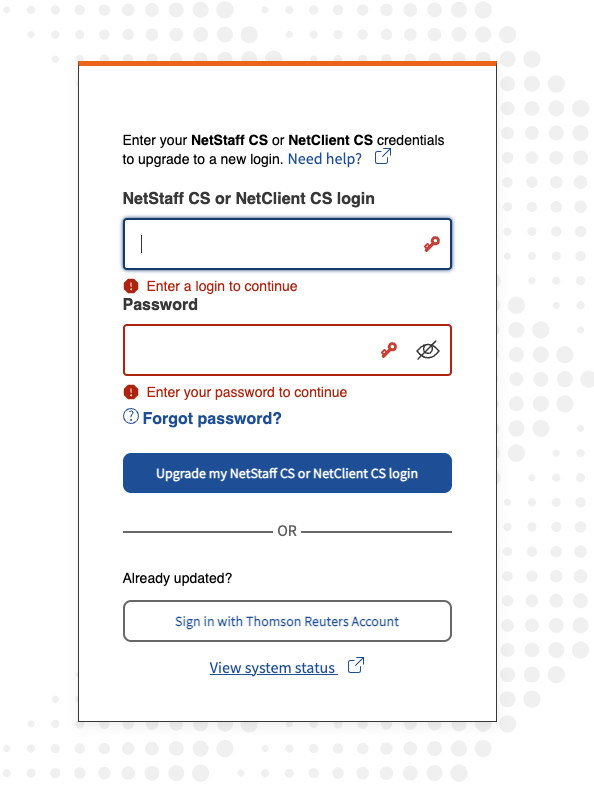
Click the sign-in option—if you see a prompt about upgrading your account, choose “Upgrade my NetStaff CS or NetClient CS login”.
-
Enter your existing credentials (login ID and password) from your previous account.
-
Provide an email address that will serve as your Thomson Reuters ID (if required).
-
Set up multi-factor authentication (MFA)—choose a method such as authenticator app, text message, or phone call.
-
Once authentication is complete, you should be redirected to your dashboard or portal home page.
-
Bookmark the new unified login URL for convenient future access.
Screenshot / visual example
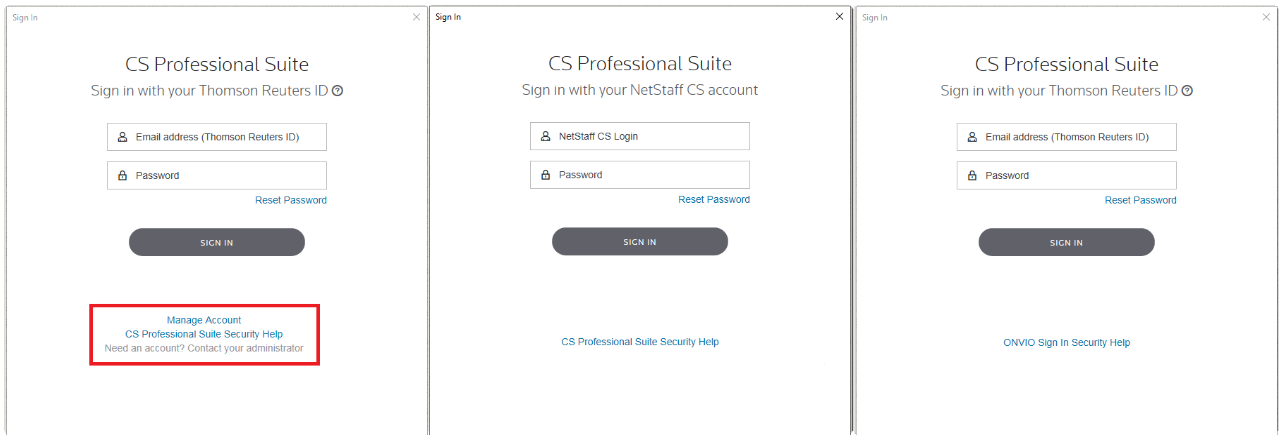

Common problems encountered during netstaff cs login
Even with a straightforward process, users may hit issues. Here are some frequent ones along with resolutions:
-
Forgotten password or login ID: Use the “Forgot password” option if available. If that fails, contact your firm’s support or Thomson Reuters customer service.
-
Not yet upgraded to the new login: If your firm has migrated to the Thomson Reuters unified account but you are still using old credentials, you may see a “login not recognized” error. Follow the upgrade steps as outlined above.
-
MFA issues (multi-factor authentication): If you didn’t set up your MFA device, or lost access, your account may be locked. You’ll need to reset via support or use a temporary login code.
-
Browser or device compatibility: Ensure you use a supported browser, disable blocking plugins, and allow cookies. Some login portals require JavaScript enabled.
-
Access permissions: Even if login succeeds, you may see limited features if your firm hasn’t granted the correct permissions. Contact your administrator if expected menus are missing.
-
Mobile app issues: The mobile version of NetClient CS has mixed reviews; some users report login failures or broken links.
Tips to optimize your netstaff cs login experience
To make future logins smoother and more secure, consider these best practices:
-
Use a strong, unique password and change it periodically.
-
Enable MFA and choose a reliable method (authenticator app is often best).
-
Bookmark the correct login URL rather than relying on search results.
-
Save your login credentials in a password manager for convenience and security.
-
From a trusted device and secure network—avoid public WiFi when accessing sensitive portals.
-
Clear browser cache or use incognito mode if you hit inter-page errors.
-
If you’re an administrator, communicate upgrades and login changes proactively to your users.
-
In your firm’s training materials, include step-by-step instructions for new sign-ins and resets, especially during migration phases.
Differences between NetStaff CS and NetClient CS login
Though closely linked, there are some distinctions:
-
NetClient CS is primarily a client portal—clients log in to view documents, invoices, pay stubs, etc.
-
NetStaff CS (or the login for it) is typically used by staff or firm users—those inside the accounting or payroll firm, or those who manage client portals.
-
Because of the migration to Thomson Reuters unified sign-in, many firms are advising clients and staff to upgrade either system to the same login platform.
-
Therefore, when you see messaging about “Upgrade my NetStaff CS or NetClient CS login,” it means both systems are converging to the same authentication base.
Understanding which user type you are (client vs staff) will help you anticipate where in the portal you should land and what features you’ll see.
Security and compliance considerations for netstaff cs login
Given that financial and payroll data may be accessed via the system, security is paramount. The migration to heightened security (including mandatory MFA) underscores this. Some key items:
-
MFA protects against credential theft—even if someone obtains your password, a second factor stops them.
-
Ensure your firm’s settings require secure password policies, session timeouts, and activity logging.
-
As a user, monitor your account for unusual activity (unknown logins, unexpected documents).
-
Avoid storing sensitive login details in unsecured places (plain text files, shared config).
-
Use device-level protection (e.g., screen lock, encryption) especially when accessing via mobile apps.
-
For firms: keep track of whom you’ve given portal access, and disable accounts when staff depart.
-
Regularly update your browser and apps to protect against known vulnerabilities.
How to reset or recover netstaff cs login credentials
If you cannot log in to your netstaff cs login portal, follow these recovery steps:
-
Use “Forgot password” link on the login screen if available.
-
If you cannot remember your login ID, check your firm – they may have sent an invitation or welcome email.
-
If your account is locked due to too many failed attempts, wait for the lockout period or contact support.
-
If your MFA device is unavailable, request temporary codes or removal of the old device via support.
-
After resetting, test the login and then update the stored credentials in your password manager.
-
Notify your firm’s administrator if you suspect unauthorized access.
Best practices for administering netstaff cs login in your firm
If you’re a firm administrator overseeing the login process for staff or clients, here’s what to keep in mind:
-
Communicate any upcoming login changes (e.g., migration to Thomson Reuters unified login) ahead of time.
-
Prepare step-by-step instructions for users—including upgrade steps, MFA setup, and FAQs.
-
Set up support channels: email, phone, or helpdesk to assist with login issues.
-
Monitor login metrics: number of failed attempts, account lock-outs, inactive accounts.
-
Regularly review user permissions—ensure only necessary access is granted.
-
Maintain documentation of your firm’s policy regarding portal access, password renewal, and MFA management.
-
Encourage users to switch from shared credentials to unique individual logins—this improves auditing.
The future of netstaff cs login and portal evolution
As organizations increasingly demand remote access, secure mobile workflows, and integrated systems, the netstaff cs login ecosystem is evolving accordingly. Some trends we can anticipate:
-
Stronger login frameworks: SSO (single sign-on) adoption, more advanced MFA (biometric, hardware tokens).
-
Better mobile app experiences and stability—addressing the complaints around the current apps.
-
More unified portals combining staff, clients, accounting, payroll, and document management in a single interface.
-
Greater regulatory compliance demands around data access and at-rest encryption, meaning firms providing netstaff cs login portals will likely upgrade accordingly.
-
Enhanced user training and self-help resources: video walkthroughs, interactive guides, automated chatbots to guide login issues.
netstaff cs login: common misconceptions
Here are a few misguided ideas that users sometimes hold—and why they are incorrect:
-
Misconception: “I can skip MFA and just use password only.” Reality: Many firms now require MFA as part of compliance and security, so skipping is not always allowed.
-
Misconception: “Once I set up login I’ll never need to change anything.” Reality: Password policies, login upgrade prompts, and software updates may force changes over time.
-
Misconception: “If login fails it must be the system’s fault.” Reality: Often browser cache, device compatibility or credential issues cause problems. Always check these first.
-
Misconception: “All users see the same portal features.” Reality: Staff vs client accounts, or different roles, will see different dashboard items and menu options, depending on permissions.
-
Misconception: “The mobile app is always fully functional.” Reality: Some reviews indicate login or feature limitations in the mobile version of NetClient CS.
Understanding these helps avoid frustration and streamlines your login experience.
How to prepare for your first netstaff cs login
If you’re logging in for the first time (or guiding someone who is), here’s a checklist you should run through:
-
Verify you received an invitation email (from your firm or Thomson Reuters).
-
Ensure you know your login ID (usually email) and initial password.
-
Choose a time and device where you’re not rushed—so you can complete setup without interruption.
-
Have your mobile device handy for MFA setup (if required).
-
Use a supported browser and enable JavaScript/cookies.
-
After successful login, bookmark the portal and store credentials securely.
-
Review the dashboard and familiarize yourself with menu items (documents, invoices, time entry, etc.).
When to contact support for netstaff cs login issues
You should reach out for support in these scenarios:
-
Your login credentials aren’t recognized and you haven’t received an upgrade prompt.
-
You don’t receive or cannot set up MFA, and you’re locked out.
-
Browser/device errors persist (even after clearing cache or trying a different device).
-
You believe your account has been accessed by someone else.
-
Menu items or features you expect to see are missing—likely a permission issue.
-
The mobile app consistently fails to log you in or loads incorrectly.
In these cases, contact your firm’s portal administrator and/or Thomson Reuters support. Include relevant details (browser version, device type, screenshots of errors) to speed up resolution.
Also read: Net Client: The Future of Secure Digital Collaboration
FAQs
What is the default URL for netstaff cs login?
There isn’t a single “default” URL—your firm may host a custom portal page or use a Thomson Reuters-branded link. Check your invitation email or contact your firm’s IT/admin team.
Can I use my mobile device for netstaff cs login?
Yes. The mobile app for NetClient CS (closely related to NetStaff CS) is available on iOS and Android. However, some users report login reliability issues on mobile, so ensure your device and app are up to date.
Is multi-factor authentication (MFA) mandatory?
In many cases, yes. Firms using Thomson Reuters portals require MFA for increased security. The upgrade process explicitly includes MFA setup.
What do I do if I forgot my password?
Use the “Forgot password” link on the sign-in page if available. If not, contact your firm’s portal administrator or Thomson Reuters support to initiate a password reset.
Why can’t I log in even though my credentials are correct?
Possible reasons include: the account hasn’t been upgraded to the unified login, your browser/device is incompatible, your MFA isn’t set up, or the portal is experiencing technical issues. Try another browser/device, clear cache, ensure JavaScript is enabled, and if still stuck, contact support.
How often should I change my netstaff cs login password?
This depends on your firm’s policy. A good general practice is to change passwords every 90 days or when you suspect your credentials may have been compromised. Additionally, always use a strong password and unique one across different systems.
Conclusion
In summary, the netstaff cs login process is a key gateway to accessing essential tools in your accounting, payroll or client-portal work. While recent upgrades and migrations to Thomson Reuters unified login may add an extra step initially, they lead to a more secure and consistent user experience. By following the detailed steps, adopting best practices, and being aware of common issues, you can make your login experience smooth and trouble-free. Embrace the process, stay secure, and get the most out of your portal access.